








Manage Permissions
Navigation: Command Center > Admin > HR and Access Control > Permissions
The Manage Permissions screen helps to manage the permissions for different roles and users corresponding to these roles. This screen comprises of a static and a dynamic pane. Permission can be granted/revoked at the role/user level for the application components (forms, groups). The different permissions that can be provided are Access, Add, Edit, Delete, and Restore.
The various options available in this page are explained below:
Selection Criteria Section:
- The Role drop-down box displays the existing roles available in the system. Roles created using the Add Role function get populated here. Select the role for which you want to add/edit/view the permission.
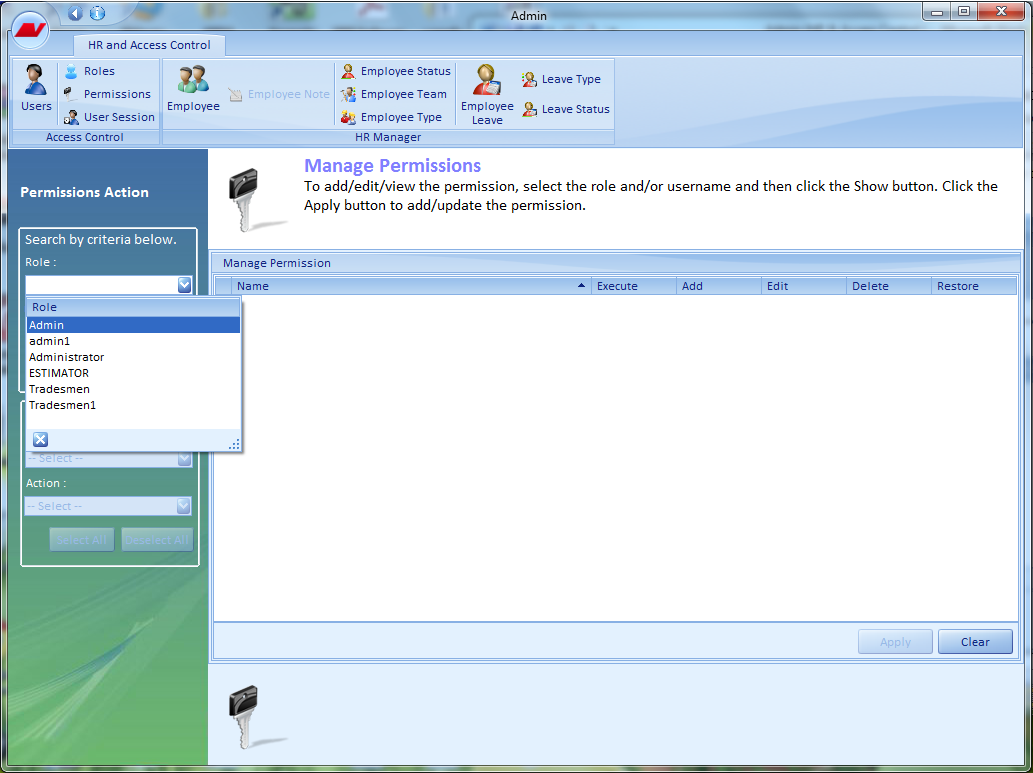
- Click the Show button in this section to display the permission for all users under the selected role.
- All the users who belong to the selected role are listed in the Username drop-down box. Users created using the Add User function and associated with the selected role get populated here. Select the user for whom you want to add/modify/view permission.
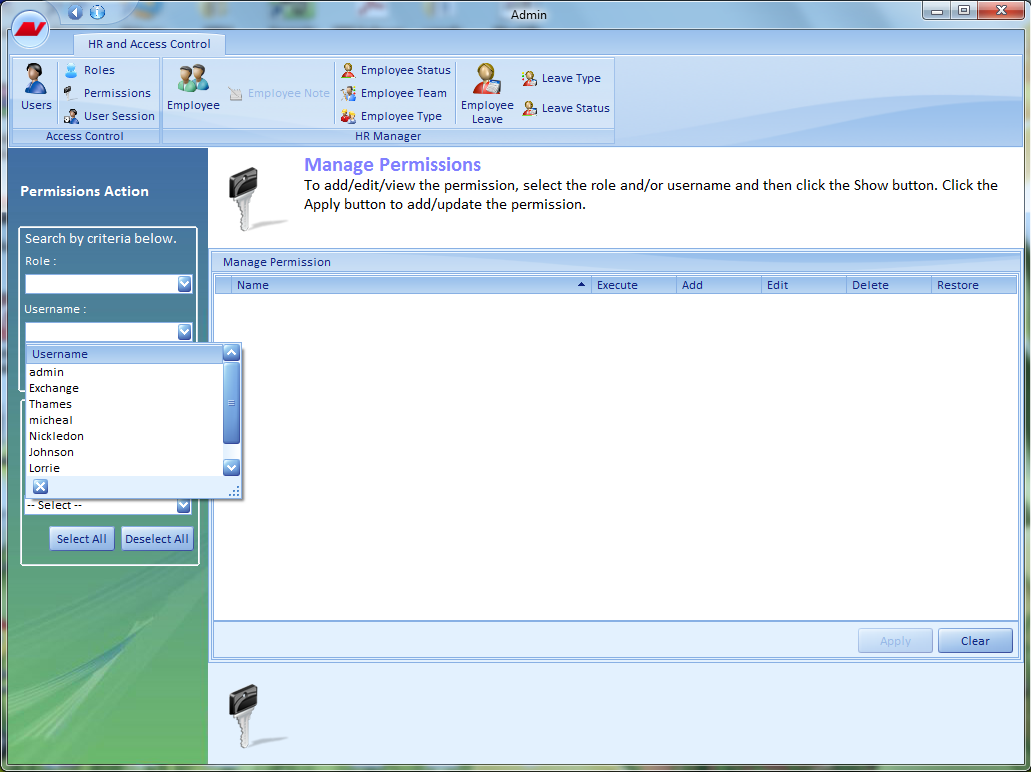
- Click the Show button in this section to display the permission for the selected user under the selected role.
- Click the Clear button to erase the options selected.
In the right pane, the system displays all the modules (along with its components Tabs, Forms, and Groups) along with the appropriate permissions that the selected Role/user has, in a tabular format. The green dot corresponds to any user/role indicates that the user has corresponding permissions, whereas red dot color indicates that the user does not possess the appropriate permissions.
Apply To Section:
All the options under this section get activated only after the Show button is pressed in the Selection Criteria section after selecting the required Role (and user if required).
- Forms and Groups are the key components of every module in the application and the permissions can be granted/revoked at the component level. Select the component for which you want to grant/revoke access from the Type list.
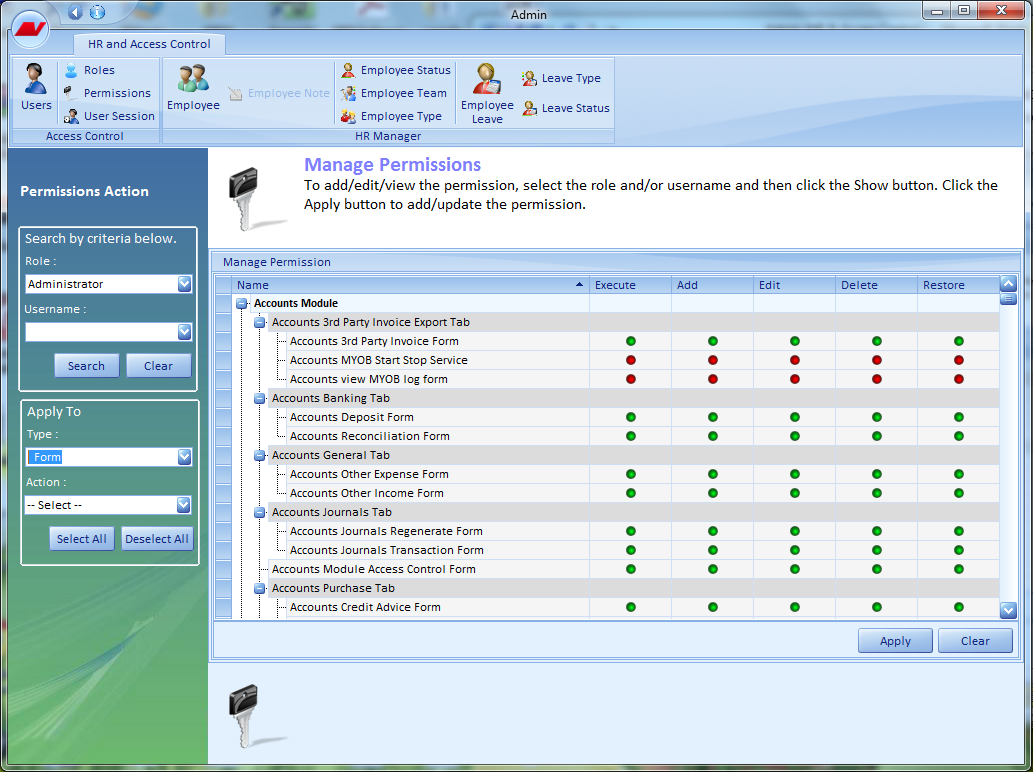
- Click the Select All button to provide all the permissions at the selected component level.
E.g., if Form is selected, all the permissions at the Form level for the selected role/user is granted.
- Click the Deselect All button to revoke all the permissions at the selected component level.
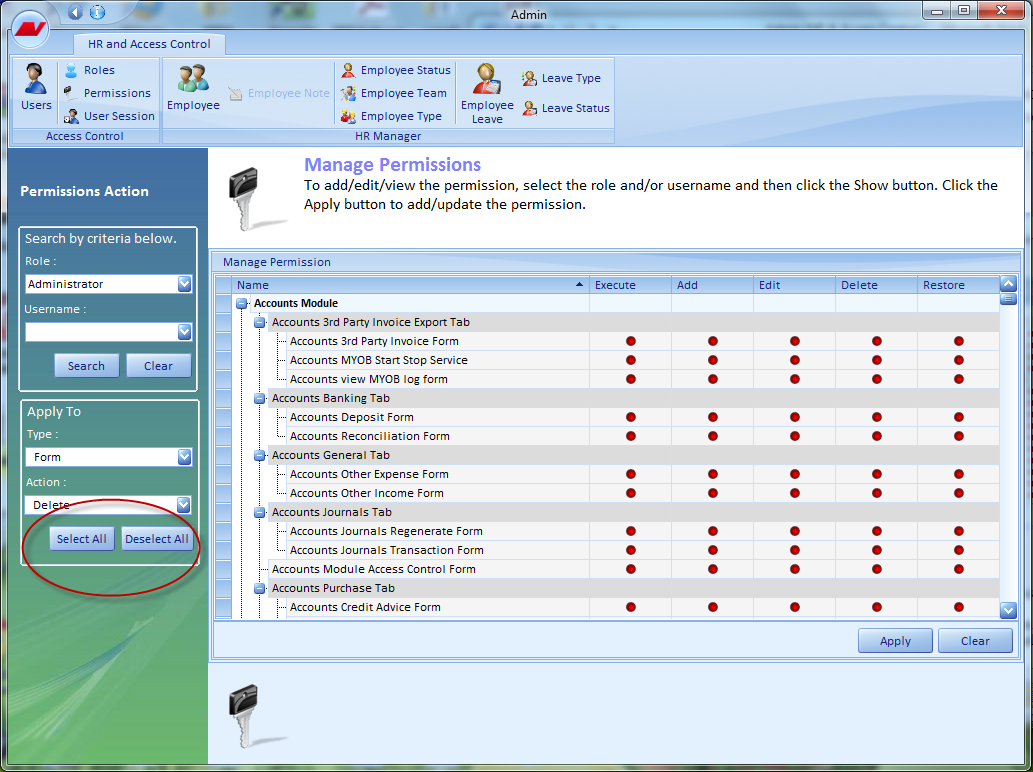
- To provide/revoke specific permission, select the option from the Action drop-down box. The various options that are available are Access, Add, Edit, Delete, and Restore.
- Click the Select All/Deselect All button to grant/revoke selected permission at the selected component level.
- Click the Clear button to erase the options selected.
- Click Apply button to apply the selected permissions to the role/user selected. The system displays a confirmation message. Click Yes to save
